在 VS Code 中使用自定义指令
自定义指令使您能够定义通用的准则和规则,从而自动影响 AI 生成代码和处理其他开发任务的方式。与其在每次聊天提示中手动包含上下文,不如将自定义指令指定在 Markdown 文件中,以确保 AI 回复的一致性,并符合您的编码实践和项目要求。
您可以配置自定义指令,使其自动应用于所有聊天请求,或仅应用于特定文件。或者,您可以手动将自定义指令附加到特定的聊天提示。
自定义指令不会考虑您在编辑器中键入时的内联建议。
指令文件的类型
VS Code 支持多种类型的基于 Markdown 的指令文件。如果您在项目中拥有多种类型的指令文件,VS Code 会将它们合并并添加到聊天上下文中,但不能保证特定的顺序。
-
单个
.github/copilot-instructions.md文件- 自动应用于工作区中的所有聊天请求
- 存储在工作区中
-
一个或多个
.instructions.md文件- 使用 glob 模式,根据文件类型或位置有条件地应用指令
- 存储在工作区或用户配置文件中
-
一个或多个
AGENTS.md文件- 如果您在工作区中使用多个 AI 代理,这将非常有用
- 自动应用于工作区中的所有聊天请求或特定子文件夹(实验性)
- 存储在工作区根目录或子文件夹中(实验性)
指令之间的空格将被忽略,因此指令可以写成单个段落、每行一个、或用空行分隔以提高可读性。
要引用指令中的特定上下文,例如文件或 URL,您可以使用 Markdown 链接。
自定义指令示例
以下示例演示了如何使用自定义指令。有关更多社区贡献的示例,请参阅Awesome Copilot 存储库。
示例:通用编码准则
---
applyTo: "**"
---
# Project general coding standards

## Naming Conventions
- Use PascalCase for component names, interfaces, and type aliases
- Use camelCase for variables, functions, and methods
- Prefix private class members with underscore (_)
- Use ALL_CAPS for constants

## Error Handling
- Use try/catch blocks for async operations
- Implement proper error boundaries in React components
- Always log errors with contextual information
示例:特定语言的编码准则
注意这些指令如何引用通用编码准则文件。您可以将指令分成多个文件,以保持它们的组织性并专注于特定主题。
---
applyTo: "**/*.ts,**/*.tsx"
---
# Project coding standards for TypeScript and React

Apply the [general coding guidelines](./general-coding.instructions.md) to all code.

## TypeScript Guidelines
- Use TypeScript for all new code
- Follow functional programming principles where possible
- Use interfaces for data structures and type definitions
- Prefer immutable data (const, readonly)
- Use optional chaining (?.) and nullish coalescing (??) operators

## React Guidelines
- Use functional components with hooks
- Follow the React hooks rules (no conditional hooks)
- Use React.FC type for components with children
- Keep components small and focused
- Use CSS modules for component styling
示例:文档编写准则
您可以为不同类型的任务创建指令文件,包括非开发活动,例如编写文档。
---
applyTo: "docs/**/*.md"
---
# Project documentation writing guidelines

## General Guidelines
- Write clear and concise documentation.
- Use consistent terminology and style.
- Include code examples where applicable.

## Grammar
* Use present tense verbs (is, open) instead of past tense (was, opened).
* Write factual statements and direct commands. Avoid hypotheticals like "could" or "would".
* Use active voice where the subject performs the action.
* Write in second person (you) to speak directly to readers.

## Markdown Guidelines
- Use headings to organize content.
- Use bullet points for lists.
- Include links to related resources.
- Use code blocks for code snippets.
使用 `.github/copilot-instructions.md` 文件
在工作区根目录下的单个 `.github/copilot-instructions.md` Markdown 文件中定义您的自定义指令。VS Code 会自动将此文件中的指令应用于此工作区内的所有聊天请求。
要使用 `.github/copilot-instructions.md` 文件
-
启用 github.copilot.chat.codeGeneration.useInstructionFiles 设置。
-
在工作区根目录创建 `.github/copilot-instructions.md` 文件。如果需要,请先创建 `.github` 目录。
-
使用自然语言和 Markdown 格式描述您的指令。
Visual Studio 和 GitHub.com 中的 GitHub Copilot 也会检测 `.github/copilot-instructions.md` 文件。如果您同时在 VS Code 和 Visual Studio 中使用某个工作区,则可以使用同一个文件为这两个编辑器定义自定义指令。
使用 `.instructions.md` 文件
与使用一个适用于所有聊天请求的指令文件不同,您可以创建多个 `.instructions.md` 文件,以应用于特定的文件类型或任务。例如,您可以为不同的编程语言、框架或项目类型创建指令文件。
通过在指令文件头中使用 `applyTo` frontmatter 属性,您可以指定一个 glob 模式来定义指令应自动应用于哪些文件。在创建或修改文件时使用指令文件,通常不适用于读取操作。
或者,您也可以通过在“聊天”视图中使用“**添加上下文**” > “**指令**”选项,手动将指令文件附加到特定的聊天提示。
- 工作区指令文件:仅在工作区内可用,并存储在工作区的 `.github/instructions` 文件夹中。
- 用户指令文件:可在多个工作区中使用,并存储在当前的VS Code 配置文件中。
指令文件格式
指令文件是 Markdown 文件,使用 `.instructions.md` 扩展名,并具有以下结构
头部(可选)
头部格式为 YAML frontmatter,包含以下字段
| 字段 | 描述 |
|---|---|
描述 |
指令文件的简要描述。 |
|
指令文件的名称,用于 UI。如果未指定,则使用文件名。 |
applyTo |
可选的 glob 模式,用于定义指令应自动应用于哪些文件,相对于工作区根目录。使用 `**` 应用于所有文件。如果未指定值,则指令不自动应用 - 您仍然可以手动将其添加到聊天请求中。 |
正文
指令文件正文包含自定义指令,这些指令在应用指令时会发送给 LLM。提供您希望 AI 遵循的具体准则、规则或任何其他相关信息。
要在正文文本中引用代理工具,请使用 #tool:<tool-name> 语法。例如,要引用 githubRepo 工具,请使用 #tool:githubRepo。
示例
---
applyTo: "**/*.py"
---
# Project coding standards for Python
- Follow the PEP 8 style guide for Python.
- Always prioritize readability and clarity.
- Write clear and concise comments for each function.
- Ensure functions have descriptive names and include type hints.
- Maintain proper indentation (use 4 spaces for each level of indentation).
创建指令文件
创建指令文件时,选择是将其存储在工作区还是用户配置文件中。工作区指令文件仅适用于该工作区,而用户指令文件可在多个工作区中使用。
要创建指令文件
-
在“聊天”视图中,选择“**配置聊天**”(齿轮图标) > “**聊天指令**”,然后选择“**新建指令文件**”。
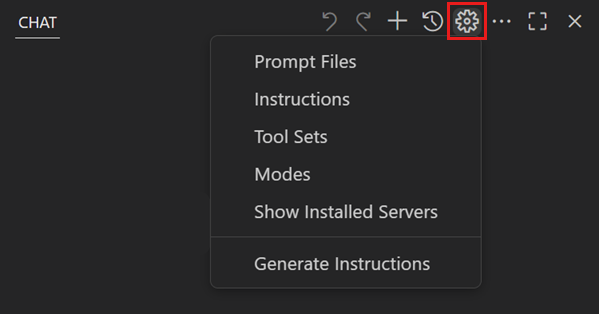
或者,使用命令面板(⇧⌘P(Windows、Linux Ctrl+Shift+P))中的“**Chat: New Instructions File**”命令。
-
选择创建指令文件的位置。
-
工作区:在工作区的 `.github/instructions` 文件夹中创建指令文件,仅在该工作区内使用。使用 chat.instructionsFilesLocations 设置为您工作区添加更多指令文件夹。
-
用户配置文件:在当前配置文件文件夹中创建指令文件,以便在所有工作区中使用。
-
-
为您的指令文件输入一个文件名。这是 UI 中使用的默认名称。
-
使用 Markdown 格式编写自定义指令。
- 在文件顶部填写 YAML frontmatter,以配置指令的描述、名称以及何时应用。
- 在文件正文中添加指令。
要修改现有的指令文件,请在“聊天”视图中选择“**配置聊天**”(齿轮图标) > “**聊天指令**”,然后从列表中选择一个指令文件。或者,使用命令面板(⇧⌘P(Windows、Linux Ctrl+Shift+P))中的“**Chat: Configure Instructions**”命令,然后从快速选择中选择指令文件。
使用 `AGENTS.md` 文件
如果您在工作区中使用多个 AI 代理,您可以在工作区根目录的 `AGENTS.md` Markdown 文件中为所有代理定义自定义指令。VS Code 会自动将此文件中的指令应用于此工作区内的所有聊天请求。
要启用或禁用对 `AGENTS.md` 文件的支持,请配置 chat.useAgentsMdFile 设置。
使用多个 `AGENTS.md` 文件(实验性)
如果您想将不同的指令应用于项目的不同部分,使用子文件夹中的多个 `AGENTS.md` 文件非常有用。例如,您可以有一个用于前端代码的 `AGENTS.md` 文件,另一个用于后端代码。
使用实验性的 chat.useNestedAgentsMdFiles 设置来启用或禁用对工作区中嵌套 `AGENTS.md` 文件的支持。
启用后,VS Code 会在工作区的所有子文件夹中递归搜索 `AGENTS.md` 文件,并将其相对路径添加到聊天上下文中。然后,代理可以根据正在编辑的文件决定使用哪些指令。
对于特定于文件夹的指令,您也可以使用多个具有不同 `applyTo` 模式的 .instructions.md 文件,这些模式可以匹配文件夹结构。
在设置中指定自定义指令
您可以通过使用 VS Code 用户或工作区设置来为特殊场景配置自定义指令。
* `codeGeneration` 和 `testGeneration` 设置自 VS Code 1.102 起已弃用。建议您改用指令文件(`.github/copilot-instructions.md` 或 `*.instructions.md`)。
您可以将自定义指令定义为设置值中的文本(`text` 属性)或在工作区中引用外部文件(`file` 属性)。
以下代码片段展示了如何在 `settings.json` 文件中定义一组指令。
{
  "github.copilot.chat.pullRequestDescriptionGeneration.instructions": [
    { "text": "Always include a list of key changes." }
  ],
  "github.copilot.chat.reviewSelection.instructions": [
    { "file": "guidance/backend-review-guidelines.md" },
    { "file": "guidance/frontend-review-guidelines.md" }
  ]
}
为您的工作区生成指令文件
VS Code 可以分析您的工作区并生成一个匹配的 `.github/copilot-instructions.md` 文件,其中包含符合您的编码实践和项目结构的自定义指令。
为您的工作区生成指令文件
-
在“聊天”视图中,选择“**配置聊天**”(齿轮图标) > “**生成聊天指令**”。
-
审阅生成的指令文件并进行任何必要的编辑。
跨设备同步用户指令文件
VS Code 可以通过设置同步在多个设备上同步您的用户指令文件。
要同步您的用户指令文件,请启用提示和指令文件的设置同步
-
确保您已启用设置同步。
-
从命令面板(⇧⌘P(Windows、Linux Ctrl+Shift+P))运行“**Settings Sync: Configure**”。
-
从要同步的设置列表中选择“**提示和指令**”。
定义自定义指令的技巧
-
保持您的指令简短且自包含。每个指令都应是一个单一的、简单的陈述。如果您需要提供多条信息,请使用多个指令。
-
对于特定于任务或语言的指令,请为每个主题使用多个 `*.instructions.md` 文件,并通过 `applyTo` 属性选择性地应用它们。
-
将特定于项目的指令存储在您的工作区中,以便与其他团队成员共享,并将其包含在版本控制中。